
Introduction
From 2 November, Lagoon will begin enforcing signature verification on all incoming webhooks, ensuring that only authenticated requests from your Git provider can trigger automatic deployments.
How will my site be affected?
Most importantly: no downtime. Your live environments, cron jobs, backups and data will remain completely unaffected.
However, where your repositories have webhook integrations, commits to your repository will not automatically trigger a build until the webhook token secret has been configured (see instructions below).
You can still deploy. Deployments through both the Lagoon UI and the Lagoon CLI remain completely unaffected.
Adding your project’s token to your webhook
Step 1 – Grab your token from the project page
The simplest way to get hold of your token is to visit your project’s Details page.
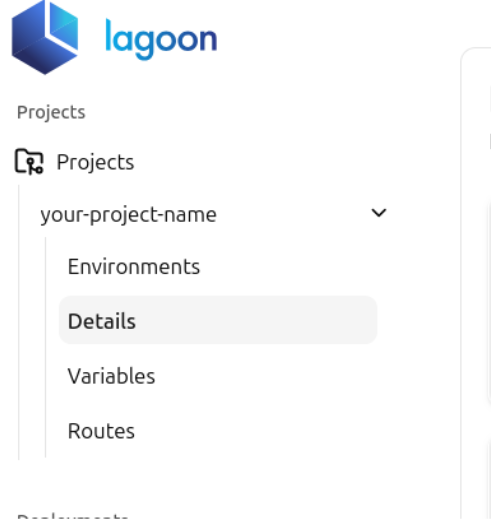
Once there, you will see a new card called WEBHOOK TOKEN.
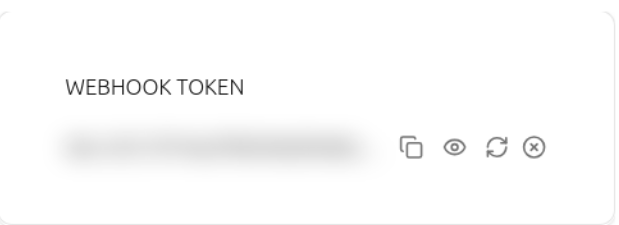
From here you can view and copy your token. To get your token, click the copy content icon.
Step 2 – Add your token to your webhook
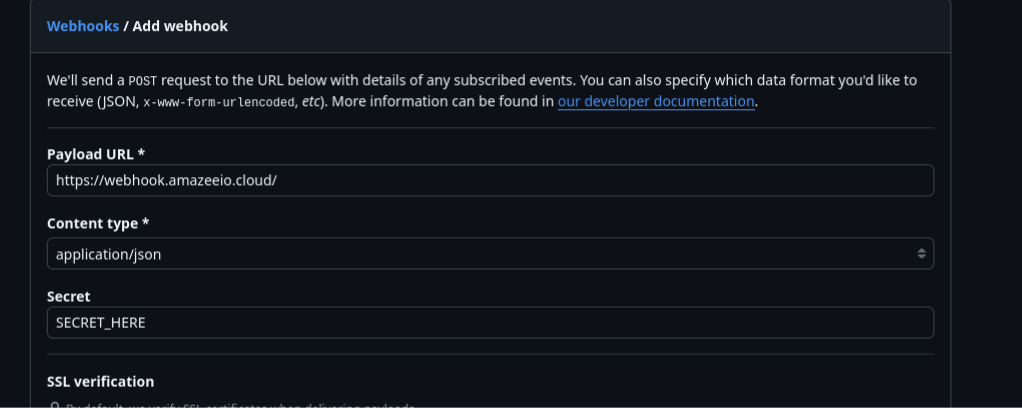
GitHub
- On your repository’s page on GitHub, click Settings in the top menu (indicated with a gear icon).
- Select Webhooks from the side menu.
- You should now see a list of webhooks. Select the webhook that pushes data to Lagoon and press Edit.
- Paste the token you copied in Step 1 into the Secret field.
- Press Update webhook to save the changes.
GitLab
- On your repository’s landing page, click Settings in the side menu (indicated with a gear icon).
- Select Webhooks from the side menu.
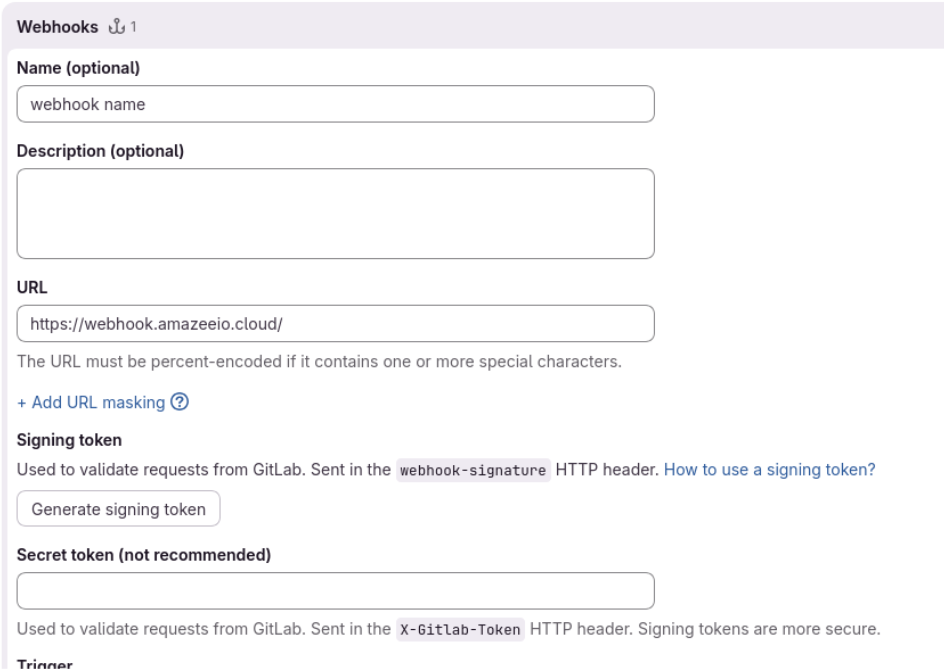
- Select the appropriate Lagoon webhook and click Edit.
- Paste the token you copied in Step 1 into the Secret token field.
- Press Save changes to save the changes.
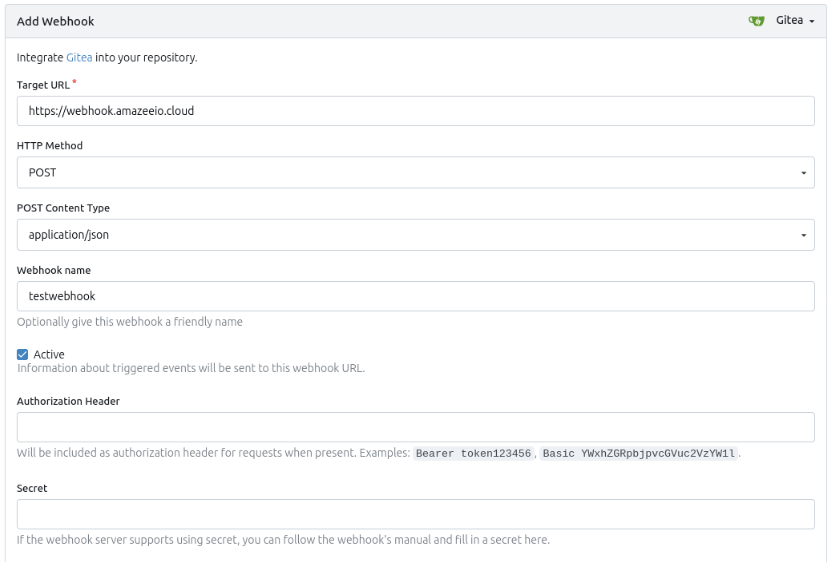
Gitea
- On your repository, visit Settings.
- Choose Webhooks from the side menu.
- From the list of webhooks, edit the webhook in question.
- Paste the token you copied in Step 1 into the Secret field.
Other platforms
For all other webhook systems that are not currently directly supported, simply append the following query parameter to the webhook URL:
?secret=YOUR_TOKEN_HERE
Polysites
A polysite is a single Git repository that is used by more than one project in Lagoon. Because a repository can only send its webhook with one secret, a single project’s token cannot be used to verify deliveries for every project that shares it.
For polysites, use your organization’s webhook token instead of an individual project’s token. The organization token is valid for all projects within the organization, so one webhook configuration on the repository will authenticate deliveries for every project that uses it.
To configure a polysite:
- Obtain your organization’s webhook token from your organization’s overview in the Lagoon UI. You may need to contact your organization owner to get this.
- Follow the steps for your Git provider in Step 2, pasting the organization token in place of a project token.
- Make sure all projects sharing the repository belong to the same organization.